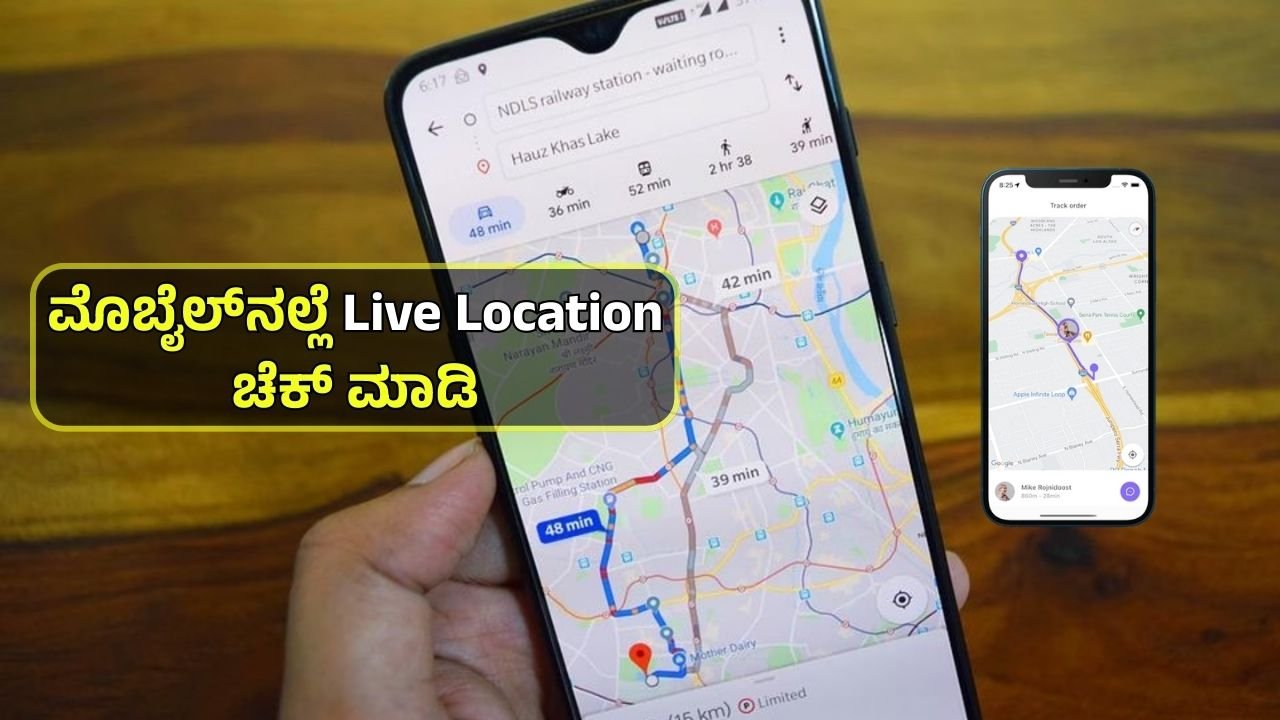
✅ Step 1: Enable Location Services
- Go to Settings on your phone.
- Tap on Location or Privacy > Location Services.
- Turn on GPS/Location Services.
- Choose the accuracy mode (High Accuracy is best for real-time tracking).
✅ Step 2: Choose a Tracking App or Service
You can use built-in or third-party apps, such as:
- Google Maps (Android & iPhone)
- Find My iPhone (iOS)
- Find My Device (Android)
- WhatsApp / Telegram / Messenger (for sharing live location)
- Life360, GeoZilla, Glympse (for family or team tracking)
✅ Step 3: Share Your Live Location (Optional)
- Open the app (e.g., Google Maps or WhatsApp).
- Tap on “Share location” or “Live location”.
- Choose who to share it with and for how long (e.g., 1 hour, Until you turn it off).
- The other person can now see your real-time movement on their map.
✅ Step 4: Check Battery & Internet
- Live tracking requires:
- GPS enabled
- Mobile data or Wi-Fi connection
- Sufficient battery power
- Tip: Live tracking may drain battery faster.
✅ Step 5: Stop Sharing When Needed
- You can manually stop sharing your location at any time through the same app.
- Apps usually also auto-stop sharing after the selected time expires.
✅ Step 6: Privacy & Permissions
- Only trusted people should have access to your live location.
- You can manage app permissions from phone settings under:
- Settings > Apps > [App Name] > Permissions > Location
📌 Summary:
| Step | Action |
|---|---|
| 1 | Turn on Location Services |
| 2 | Choose a tracking app |
| 3 | Share live location if needed |
| 4 | Ensure internet and battery are on |
| 5 | Stop sharing when done |
| 6 | Check privacy settings |